
There are two ways in which you can find Orders in BoB2. The first being via the Customer. And the second via the Order list.
Searching for an Order
There are a number of different ways to search for an Order…
a) Finding an Order via the Customer
Navigate to BoB2 → Customers → Customer List
Access the Customer List and find the Customer record you wish to view Orders for. When found, press “Edit”.
b) Orders Tab on Edit Customer screen
Navigate to BoB2 → Customers → Customer List
This will display the Customer List. Find the Customer who placed the Order via the Search. Then press “Edit” against the Customer. When within the Edit Customer screen after pressing “Edit”. Access the “Orders” tab and you will see all of the Orders related to the Customer. From here, you can then press the “Edit” button to view the Order in more detail.

c) Using the Order List
Navigate to BoB2 → Orders → Order List
Access the Order List and find the Order record you wish to view Orders for. When found, press “Edit”.
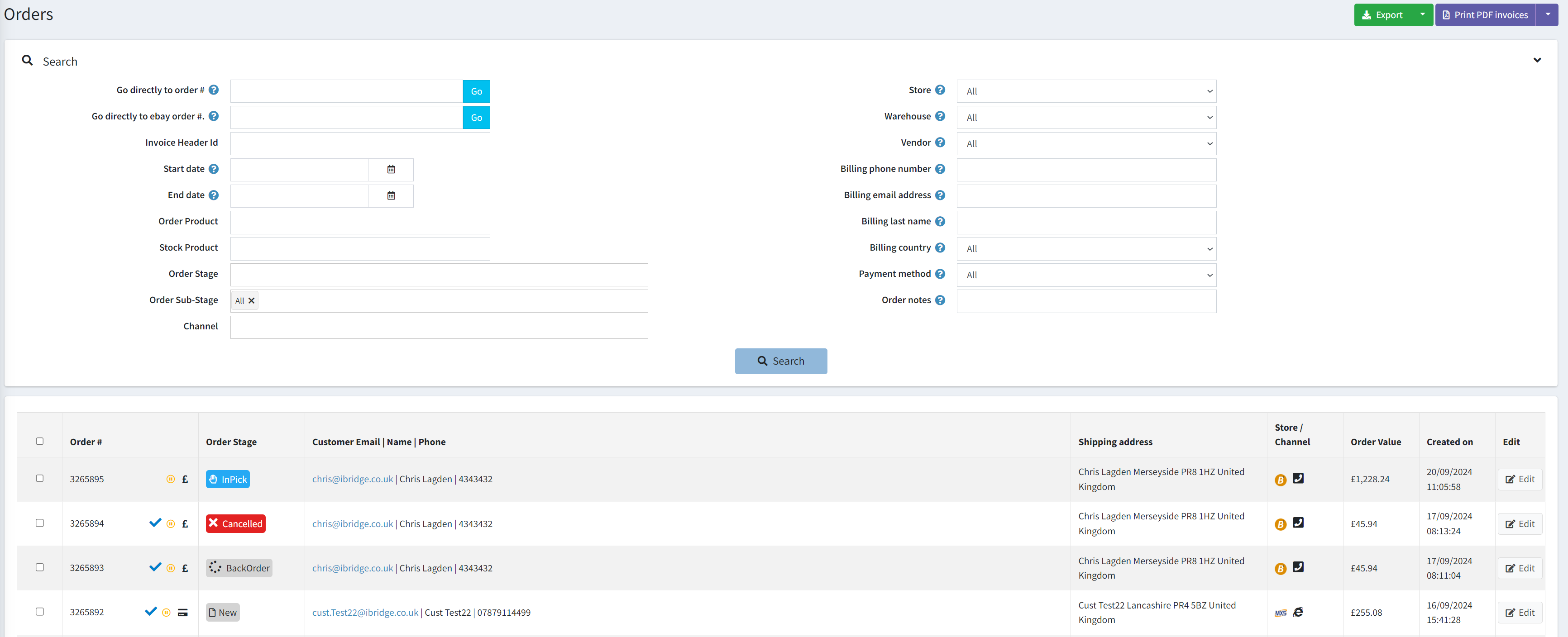
Order Screen
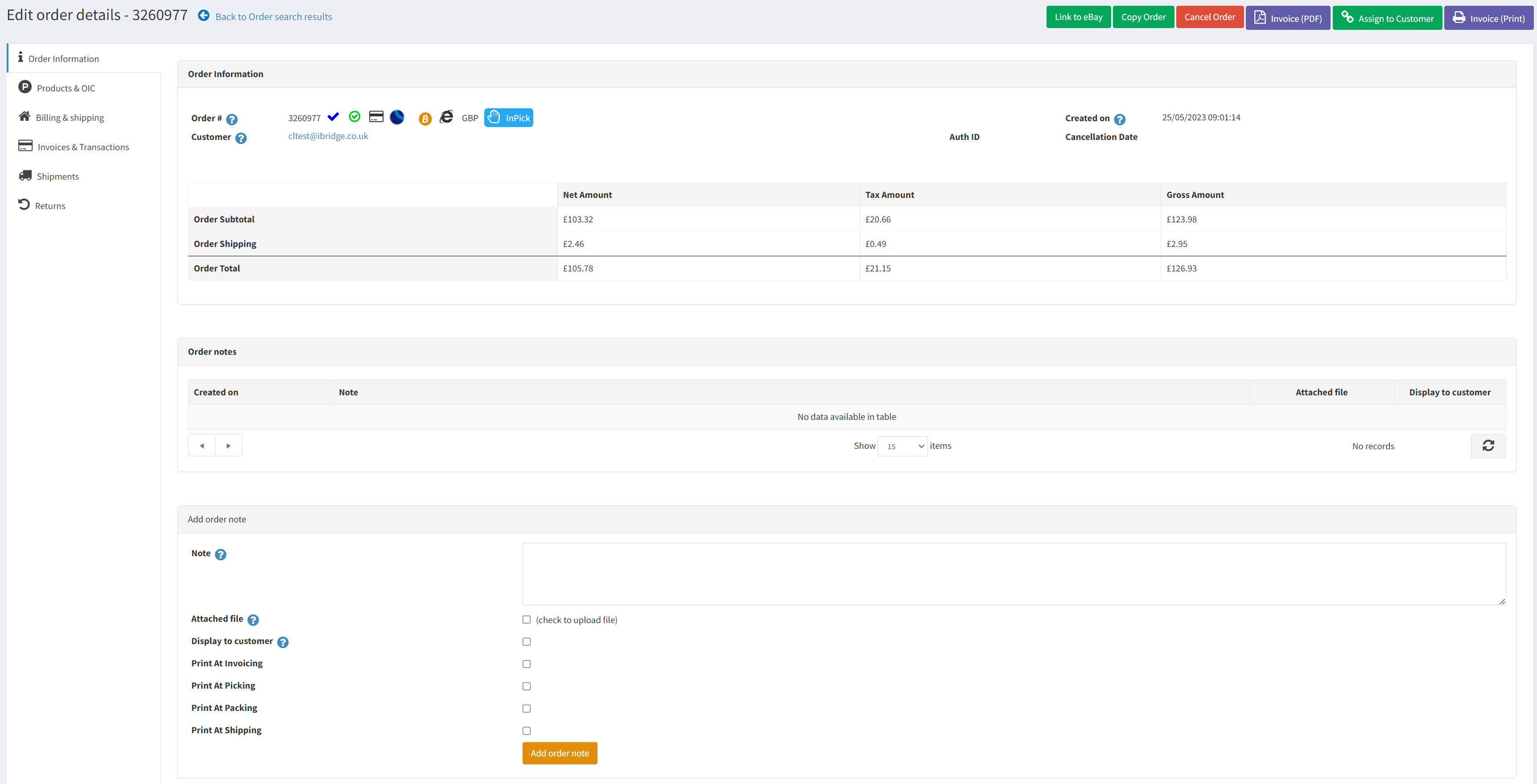
- Link to eBay – Display a popup allowing you to enter the eBay Order Id so you can link a Bob2 Order with eBay
- Wait For All Stock – Will ensure the Orders Waits for all of the stock related to the Products in the Order before processing
- Assign To Customer – Displays a popup allowing you to link the Order to a different Customer ID
- Copy Order – Will open the Impersonate mode screen, showing the Order where you can press “Reorder” and process the order as you usually would on the front end. (Please note it will only Copy Products that are Published)
- Create RMA – Will take the user to the Returns menu to create a Return for the Order
- Load (Displayed when Order is New) – Runs Order Load against the single Order
- Allocate (Displayed when Order has been Loaded) – Runs allocate order task against this single Ordeer
- Cancel – Will Cancel the Order and related Invoices.
- Invoice (PDF) – Will open a PDF version of the Invoice.
- Order (Print) – Will display a print preview for the Order summary (useful for special orders)