
Navigate to BoB2 → Orders → Order List which will display the Order List and Search. From here find the Order that is stuck in the Allocating status due to insufficient Stock Qty for an OIC line (Product).
Identifying Stock to be Re-Allocated
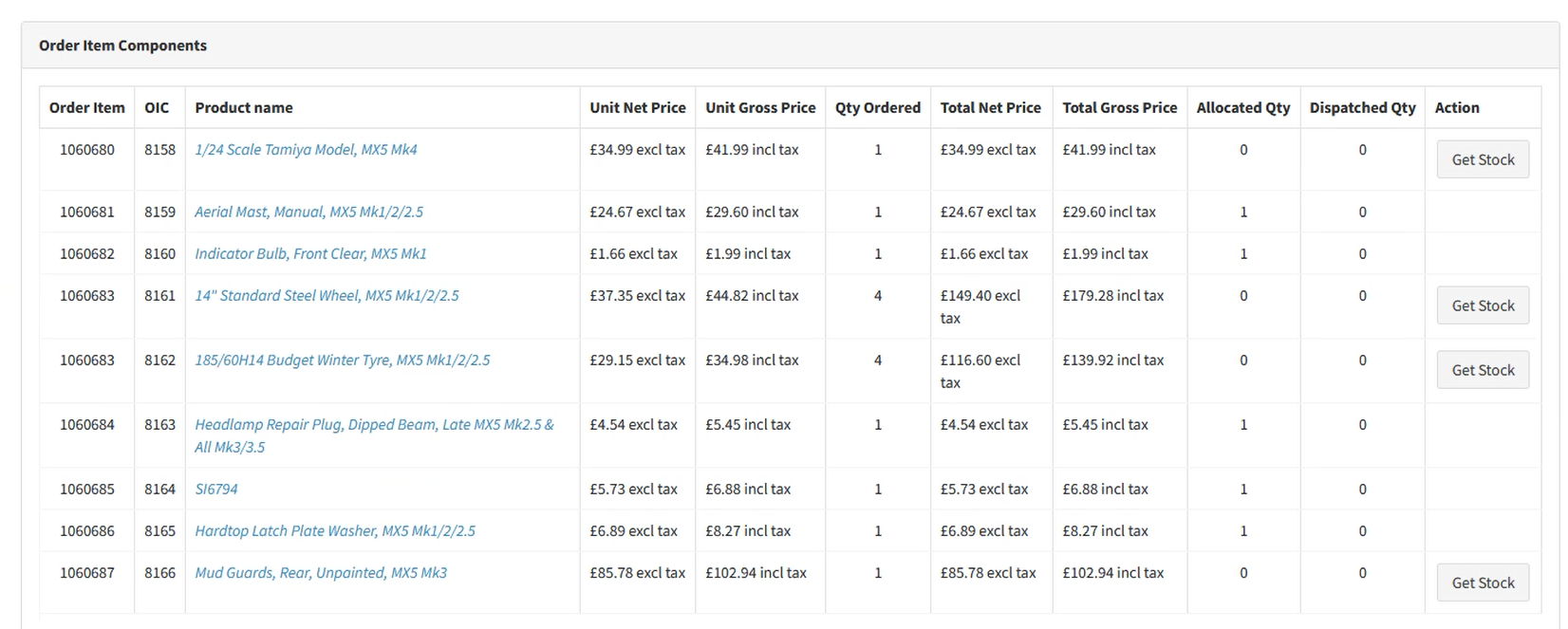
Against the Bob Order Edit Screen go to the “Products & OIC” tab. Then check the “Order Item Components” grid. From here if there is Stock that is not fully allocated against the quantity Ordered for the Product then there will be a “Get Stock” button displayed on the right side of the row.
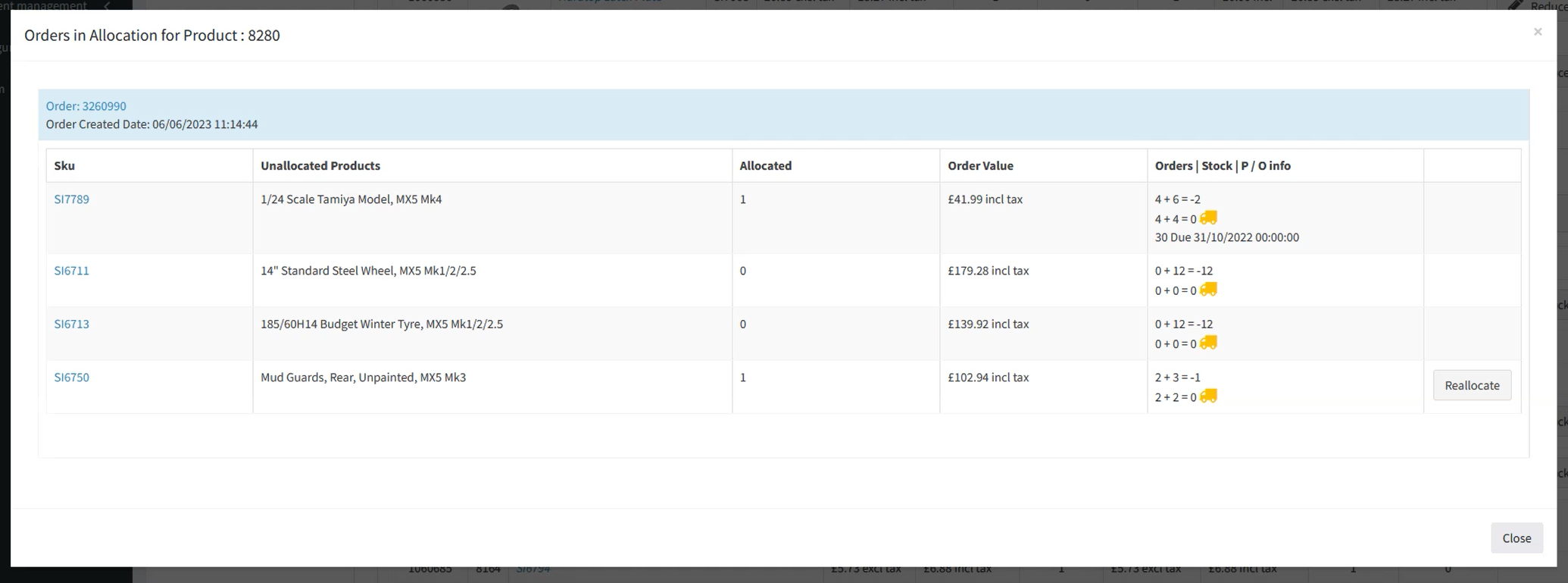
Pressing “Get Stock” will open a “Order in Allocation for Product x” popup. This will display the Orders in Bob2 which are in Allocation and include the same Product you are trying to get Stock for that have stock.
Get Stock Popup
From here you can press “Reallocate” against the Order and the Product you wish to take Stock from.
When pressed and the process has been successful then a popup will be displayed where you can press “OK”.

Checking Allocated Stock Qty
You will now be displayed with the Bob Order screen once more after the popup closed. You will now notice that for the line you got stock for has been Allocated (See Allocated Qty column) and you will notice that the “Get Stock” button is gone. In this example the Order will still be in Allocating until all has been Allocated. (Note: Unless you selected not to wait for all stock) If this was the last of the Products to be allocated then the Order would have moved out of Allocating.

Now if we go to the Order for the Product that we took Stock from, you will notice that the Allocated Qty has been reduced to compensate for the Stock Qty fetched.
