Finding a Dropship Order
After an Order has been placed containing a Dropship Product on it the Order can be located as a normal Order is. Within the BoB Order List. Which can be found from the BoB Menu, under Order and then Order List. You can filter the Order List by selecting “in Dropship” under the Order Sub-Stage dropdown. Orders with a Dropship Product are pushed through Order Load, Allocate and Payment processes as per a normal Order. They however end up in a status of Dropship rather than Picking. (NOTE: When an Order is set to in Dropship, two scheduled tasks are run in order. (InDropship task, Dropship Auto Process) which loads the Dropship Transactions.
Viewing the Dropship Transaction List
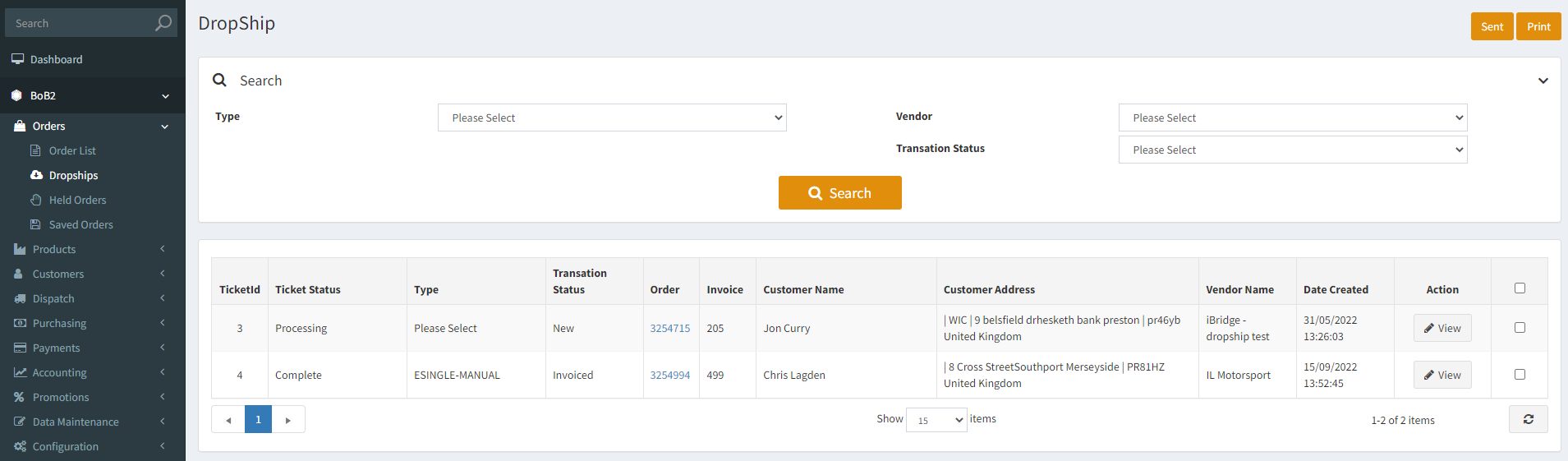
Once the Dropship automated tasks have been ran we can now go to Dropship Transaction List (https://mx5testbob.bob2.co.uk/Admin/DropShip/List) found via…
Navigate to BoB2→ Orders → Dropships
Printing the Tickets for the Supplier
From the Dropship List you will notice the new Dropship Transaction raised has been added to the bottom of the list. For the Dropship tickets you want to send to the supplier you can select them via the checkbox and then press the “Print” button which will generate a list of all of the Products to be Ordered from the supplier. (please note: This does not email the supplier automatically, this is currently a manual action performed by the operator, where you send the generated list of products in an email to the supplier).The quickest way to print and group all of the required Dropships to be printed for a specific vendor then you can select the Vendor from the dropdown and then select Transaction Status as “New and then select the checkbox in the top right corner of the grid to select all and then press print to generate the report. (See images below)

Confirming Dropship Order has been sent to the supplier
Once the Order has been sent to the supplier then you can check the box to the right of the Dropship Transaction and press the “Sent” button. This will confirm that the Transaction has been sent to the supplier and you will notice an “Invoice” button is now displayed on the row.
Invoicing the Transaction
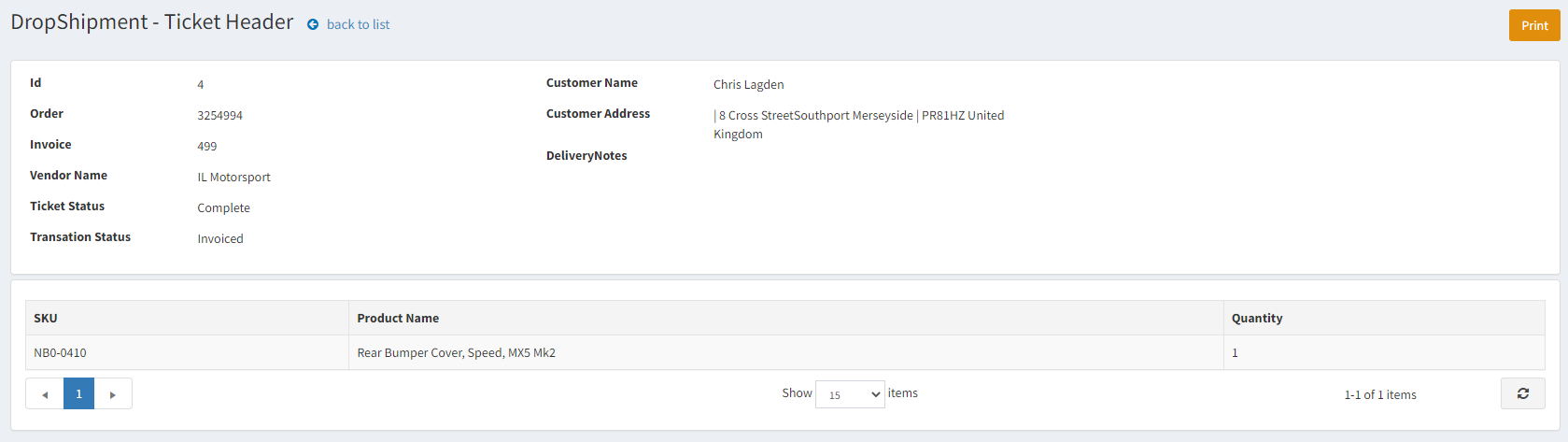
The Invoice button is for when you receive the Invoice from the supplier. Clicking on “Invoice” will display the details related to the Dropship Transaction raised and allow you to enter a document reference which you should enter to match the document sent to you. You can also Print the document in order to keep it as a external reference.
Saving/Confirming the Dropship
Once all the relevant details have been entered you can press the “Save” button in the top-right corner which will change the Status to “Invoiced”. This will now mark the Order as Complete if all the Dropship Transactions for the Order have been completed and there are no non-Dropship Products on the Order still to be dispatched. If there are still non-Dropship Products to be dispatched on the Order then the Order will not be marked as complete yet until they have been despatched.