
If you are looking to import Products or update Products en masse via an XLS document, you can do so via the BOB Product Import popup. To get to this…
Navigate to BoB2 → Products → Product List
This will display the Product List. At the top-right corner you will notice a button labelled “Import”. Clicking this will display a popup labelled “Import from Excel”.
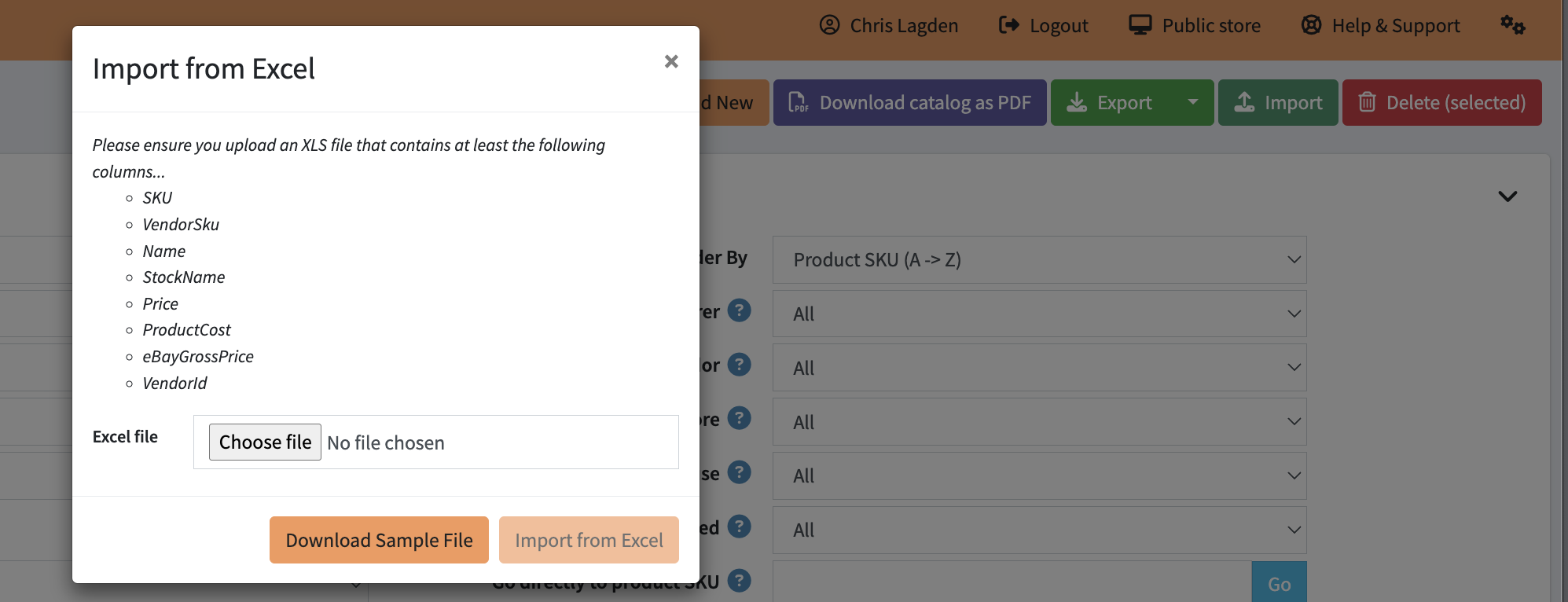
On this popup there are a couple of different buttons…
- X – Will close the popup
- Download Sample File – Will generate a blank XLS document with the import fields as columns, making it quick and easy for you to get started with updating or importing Products to BOB.
- Pressing “Choose File” button will allow you to upload an XLS file with the following columns (ensure the names are exact)…
- SKU
- VendorSku
- Name
- StockName
- Price
- ProductCost
- eBayGrossPrice (optional)
- VendorId (optional)
- NOTE: BOB will automatically detect if the Product exists and if it does then it will make changes to that based on the data provided, as long as you provide a SKU or VendorSku for the Product. If the Product does not exist based on these fields then a new Product will be created.
When added, press the “Import from Excel” button. This will take you to the import confirmation screen where the data is shown in a preview for you before being imported/updated. Below shows how that screen looks on a successful import/update.
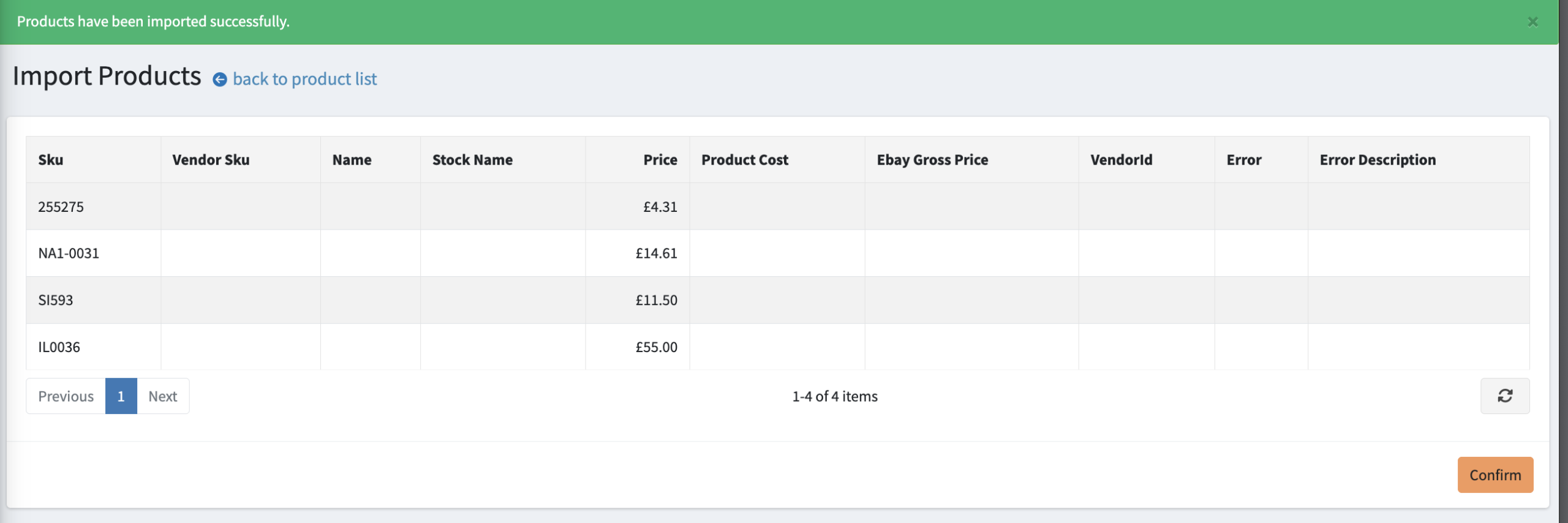
You will notice a green bar at the top on success and a “Confirm” button. This means the data has been checked and is fine to import/update in BOB. Pressing the “Confirm” button will submit the changes. In the event that the data is bad and a red error bar is displayed at the top, then the “Confirm” button will not be enabled, therefore you will need to check the Error Description field to learn why an error has occurred and then re-upload your XLS after making changed.