
Navigate to BoB2 → Products → Product List and press the “Add New” button in the top-right corner.
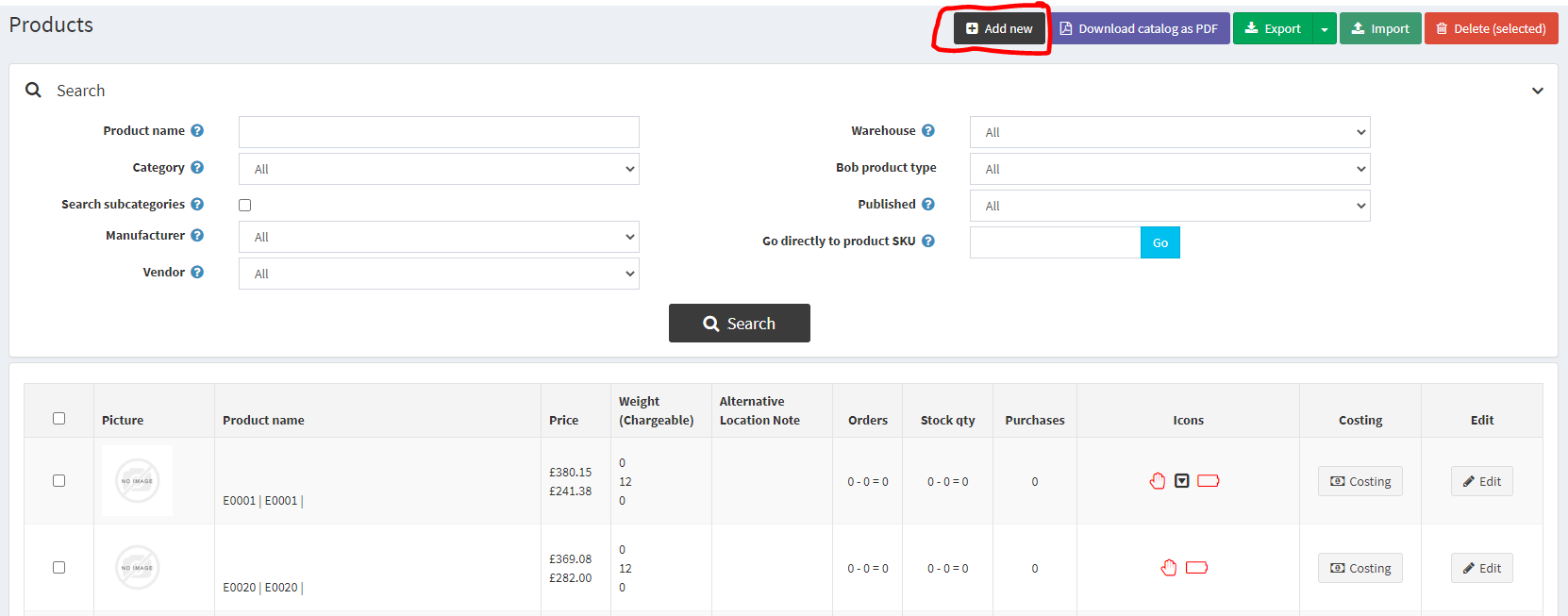
When pressing “Add New” you will be displayed with the Product create screen, and you will notice data related to “Product Info”, please fill out the fields below…
- Product Info tab…
Select Bob Product type ‘Bundle’ from the dropdown, Enter Product Name, Stock Name, SKU, add a Vendor and Manufacturer. Enter a Net Price and define weights.
Once entered, please press “Save and Continue Edit” and you will be presented with a full list of tabs and data to input for the Product. Please ensure you enter at least the following below…
- Product Info tab…
Select Visible Individually, Short Description, Full Description, select Published (if you want the Product to be live, uncheck if not. Note: Remember to switch it on when you need to), select a Category, define a Store (Limited to stores – Bob2 + your store)
-
Price tab…
select Tax Category (usually Standard, should be set to the Stores default Tax category) -
Shipping Tab…
Enter weights, dimensions, select Shipping Enabled -
Inventory Tab…
select Inventory Method (Track Inventory), check Display Availability, define the products Availability Range, Minimum Cart Qty (1), Maximum Cart Qty (more than 1 or more than Minimum Cart Qty) Back Orders (Allow Qty below 0 and Notify Customer)
PLEASE NOTE!
Cost is automatically calculated by the cost of the components that make up the bundle
Once added please press “Save”
Bundle Setup
There are 4 different Bundle product types. Please view the corresponding tutorial in order to configure the Forward Pointer you would like to create…
Reporting Data Checks
We specifically check in reporting for
bp.BobProductTypeId=10