
1) Finding a Payment Transaction
Via the Referrals List
Navigate to BoB2 → Payment → Referrals
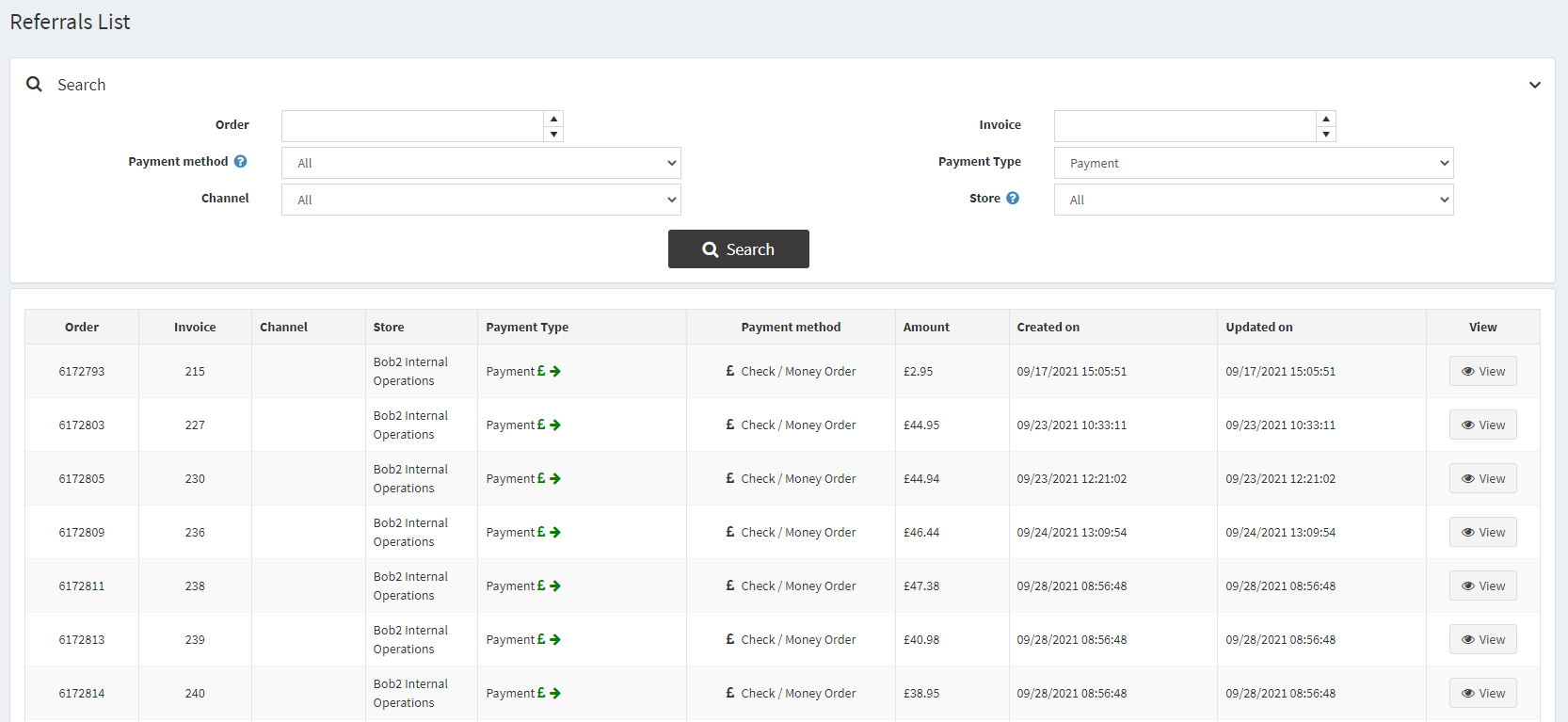
This will display you with the Referrals List of Payments/Refunds that have Failed. The list is sorted where the oldest transaction that has been created/attempted will appear at the top. This helps to you to deal with Transactions that have been waiting for the longest amount of time.
In order to display only the Payments you can either press the dropdown for “Payment Type” and select “Payment” and then press “Search”. Alternatively, you can identify the green Payment transactions via the Payment Icon in the list below…

Via the Order Screen

2) Payment Maintenance Screen
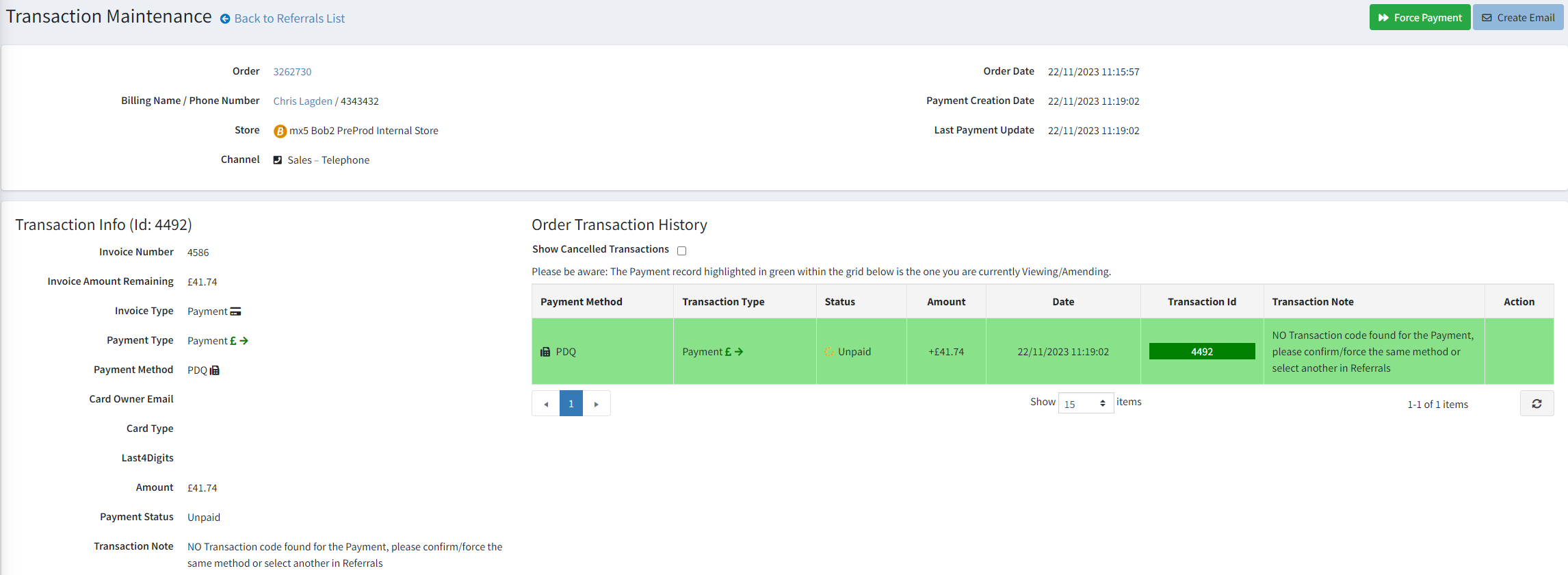
- At the top is a header containing information about the Order and the Payments date
- Bottom left shows the Payment Details, display more information related to the Transaction you are amending.
- Top-right shows buttons to control the payment. Dependant on the Payment Method will determine which buttons are displayed. You will see more detail in sections 2a and 2b on these.
- Bottom right shows a grid of Payment against the Order with the row highlighted in Green for the Transaction you are currently amending. If there are multiple Transactions against the Invoice, they will be displayed here also. For the one you are currently amending there is no “Edit” or “View” buttons, but, for the other Transactions there are. This allows you to navigate between Transactions.
Contacting the Customer
Before actioning anything related to the Transaction, usually the first action to perform when dealing with a Transaction error is to contact the Customer.
- Create Email – You can press “Create Email” which will display the email template box shown below, from here you can select the error type…
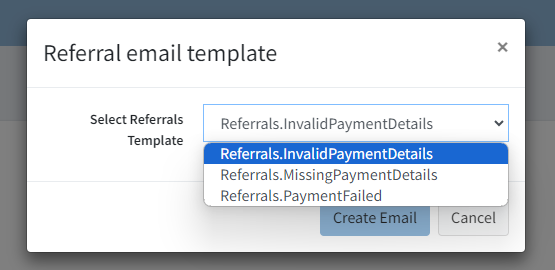 When you press “Create Email” it will generate an email for you, with which you can preview what will be sent to the Customer before pressing “Send Email”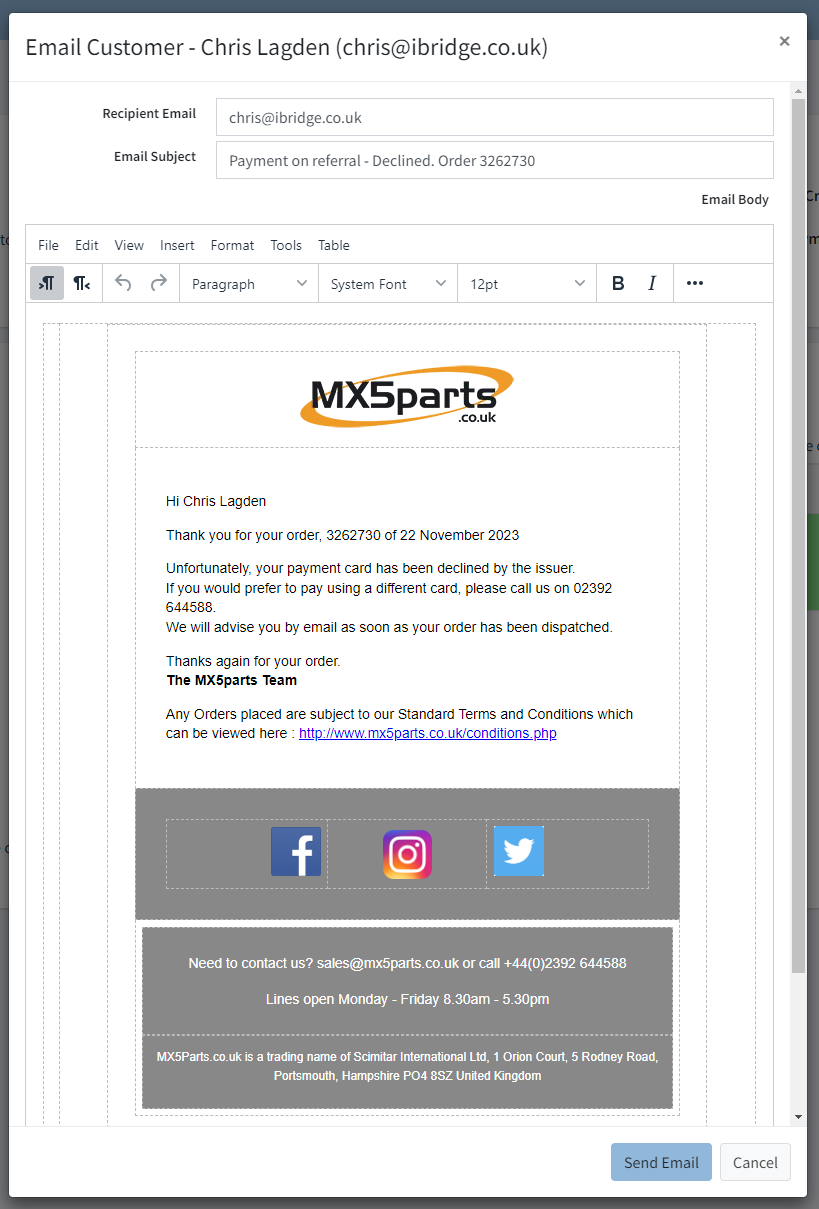
- Phone Number – In the top-right corner of the Transaction Maintenance you will notice a Phone Number for the Customer. If at first you do not get a response via email then you can always use this to contact the Customer.
a) Handling a Debit/Credit Card Payment Method
For a Credit/Debit Card Payment that has an error it will end up within Referrals. You will notice there are multiple buttons and options for you.
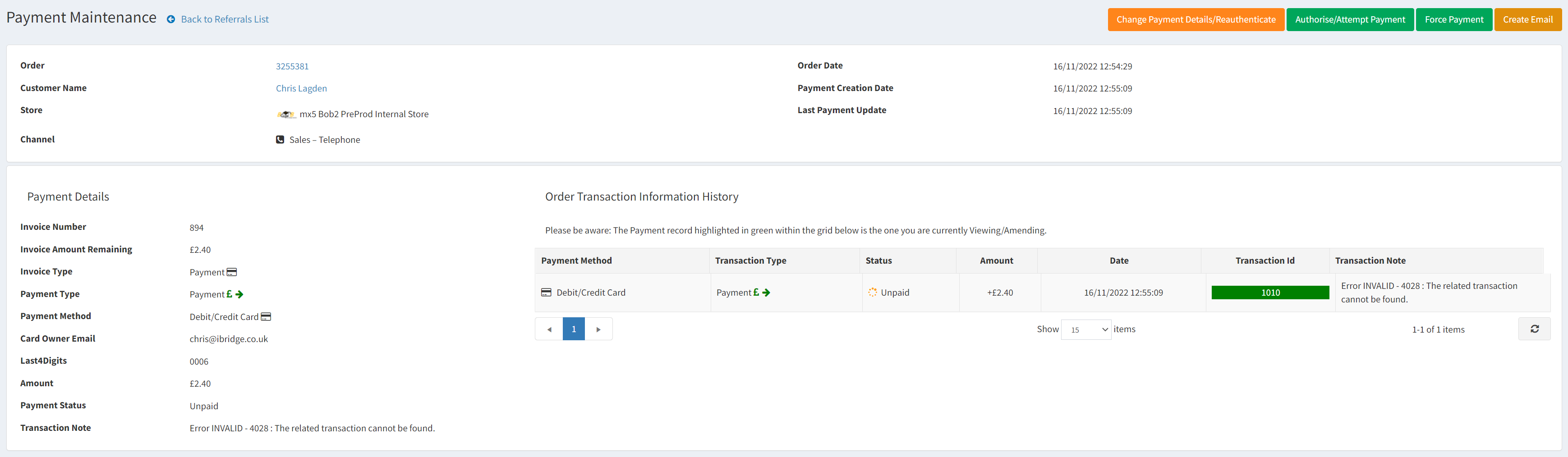
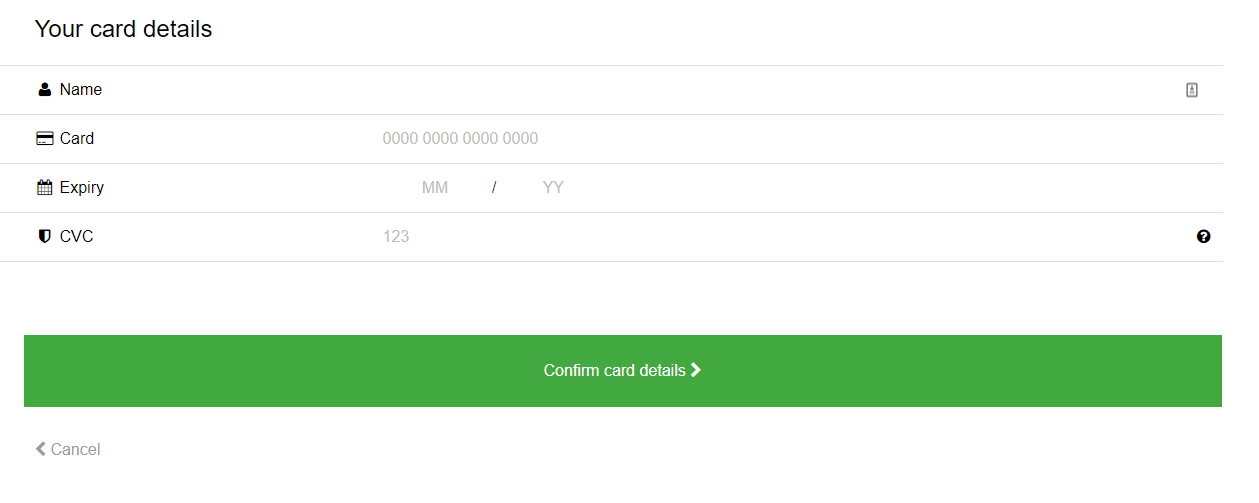
- Change Payment Details / Reauthentication – Displays the card entry screen, where you can input new card details. Once entered you will return to this screen and can press Authorise/Attempt Payment to attempt to process a transaction.
- Authorise/Attempt Payment – Attempts to process a transaction against the registered credit card.
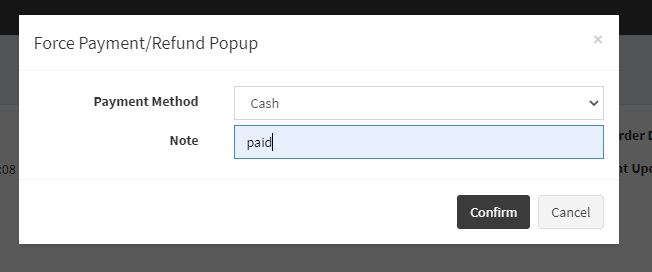
- Force Payment – Opens a popup box with a dropdown where you are able to define either to force the same payment method or a new one through the system. (Note: Remember to include a note)
b) Handling Any Other Payment Method
For any other Payment method that is not a Credit/Debit Card then we only have 1 option which is a button to “Force Payment”. If you wish to Cancel the Order/Payment then you will need to visit the Order screen.

- Force Payment – Opens a popup box with a dropdown where you are able to define either to force the same payment method or a new one through the system. (Note: Remember to include a note)