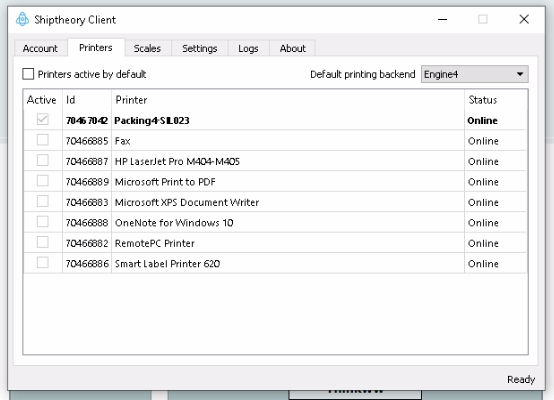
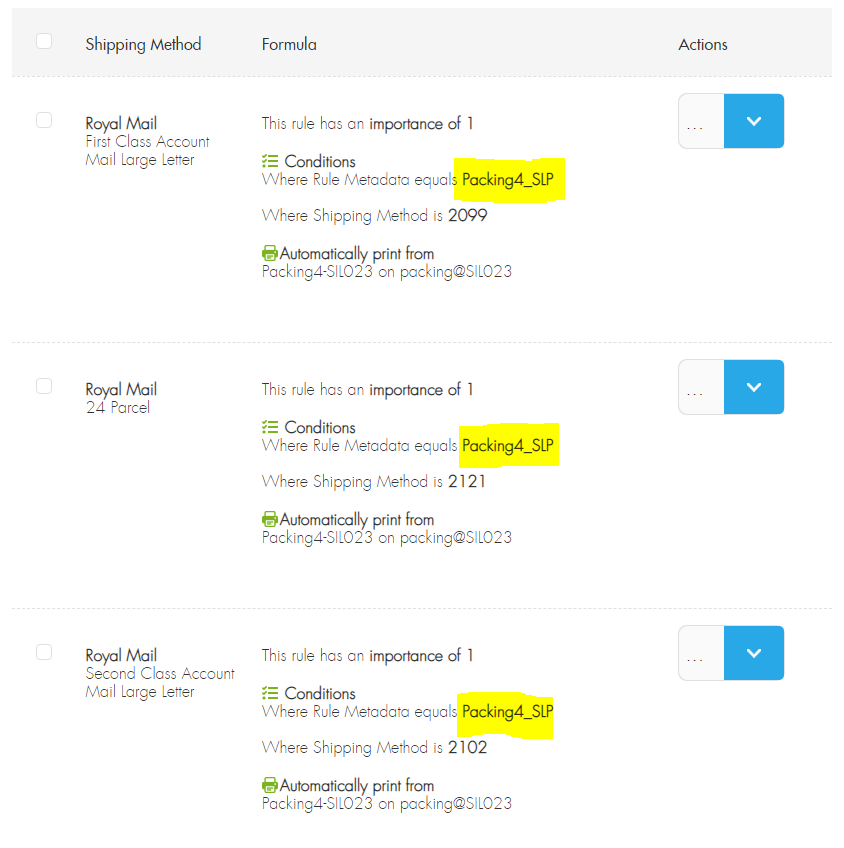
Note: For a New Packing Bench – Ensure Printer is renamed. ZDesigner to PackingX-SLP E.g. “Packing4_SLP” as this is the data to be sent via Metadata to match the ruleset.
PrintNode
- Install PrintNode client. Log in to the client.
- Select the printer from the popup on the “Printers” tab
- Navigate to BoB2 → Configuration→ iPrint and from here against the “PrintNode Settings” tab ensure the details are all correct for the account.
- Then go to the grid within that tab labelled “Print Node Printer List” and press “Get PrintNode Printers”, you will notice at the bottom the Printer you selected on the client has been added. Now press “Save”.
- Go to your Customer account in Bob2 and go to the Printers Tab and assign the Printer to the User. (Note: This will mean we will either need an account for each user and packing bench or if the user logs onto a different machine than they normally are on then they will need to change the assigned Printer)
ShipTheory
- Install ShipTheory Print Client
- Select renamed Printer from checklist in Print Client
- Amend ShipTheory Printing rules to set to the new Printer at the new PC.
Rules
https://helm.shiptheory.com/rulesets
Naming