
Packing List
To navigate to this screen please press BoB2 → Dispatch → Packing and you will be displayed with the “Orders Awaiting Packing” screen. From here you can…
- Scan the Picking Ticket barcode, which will display the Packing Screen. Or you can manually type the Invoice number and press enter or the “Go” button which will display the Packing Screen.
- Search for the Order ID which will refine the grid below.
- Search for the Invoice ID which will refine the grid below.
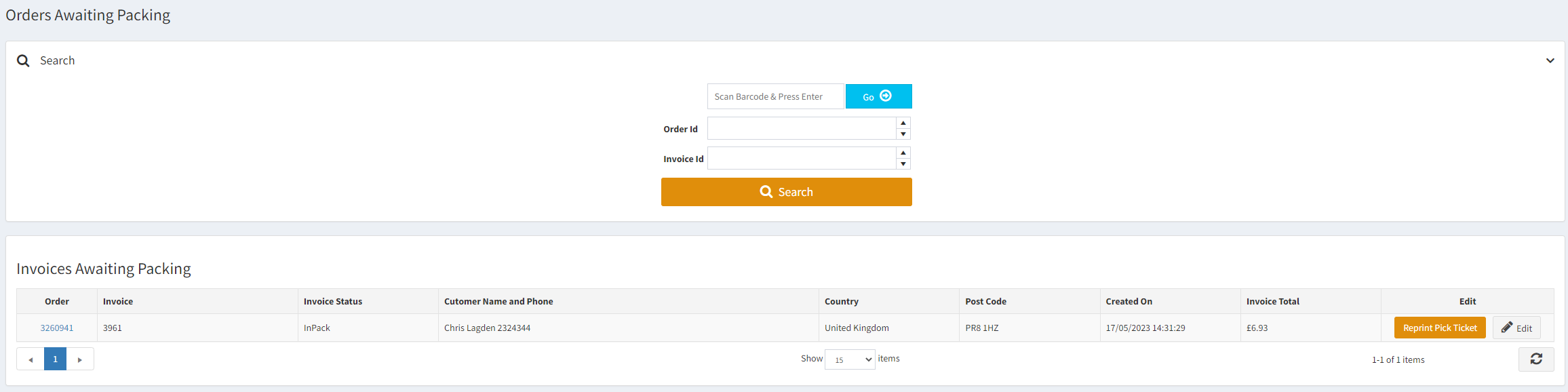
For Workshop and Shop Orders view the table at the bottom of the Packing screen…

Packing Screen
Pressing the “Edit” button adjacent to the Invoice line will take you to the Packing screen, entry to this screen will also print the Invoice…

From the Packing Screen you can see details related to the Invoice and the Order. Here you can…
- Amend Delivery Address – Will allow you to change the address via a form.
- Linked Invoices – This tab shows a list of other Invoices related to the same Customer in Packing. Via this grid you can group Invoices for the same Customer together, by pressing the checkbox and then to link them press the “Add New Shipment” button and you will notice the items from the linked invoice will be displayed.
- Shipments Grid – At the bottom you will see the Shipments grid, which will be populated once you add a Shipment. In Order to Create Shipments, press the “Add New Shipment” which will display the “Create Shipment” screen. Once here please go here and follow the guide related to the Courier you want to dispatch via…
Create a Shipment Guide - Enter the Number of Items Picked – By default this will be blank and will need to be amended before pressing “Complete Packing”
- Complete Packing – Will Complete Packing, closing the Packing screen and re-displaying the Packing List, once complete will print the Invoice. (NOTE: Cannot be done until there are confirmed Shipments)