
There are 2 ways in which you can perform Load Accounts in BoB2. The first being via the Import XLS for larger GRNs. The second being a Manual Load Accounts for smaller GRNs. Both methods are detailed below.
1) Load Accounts via XLS Import
Navigate to BoB2 → Purchasing→ Load Account Prices
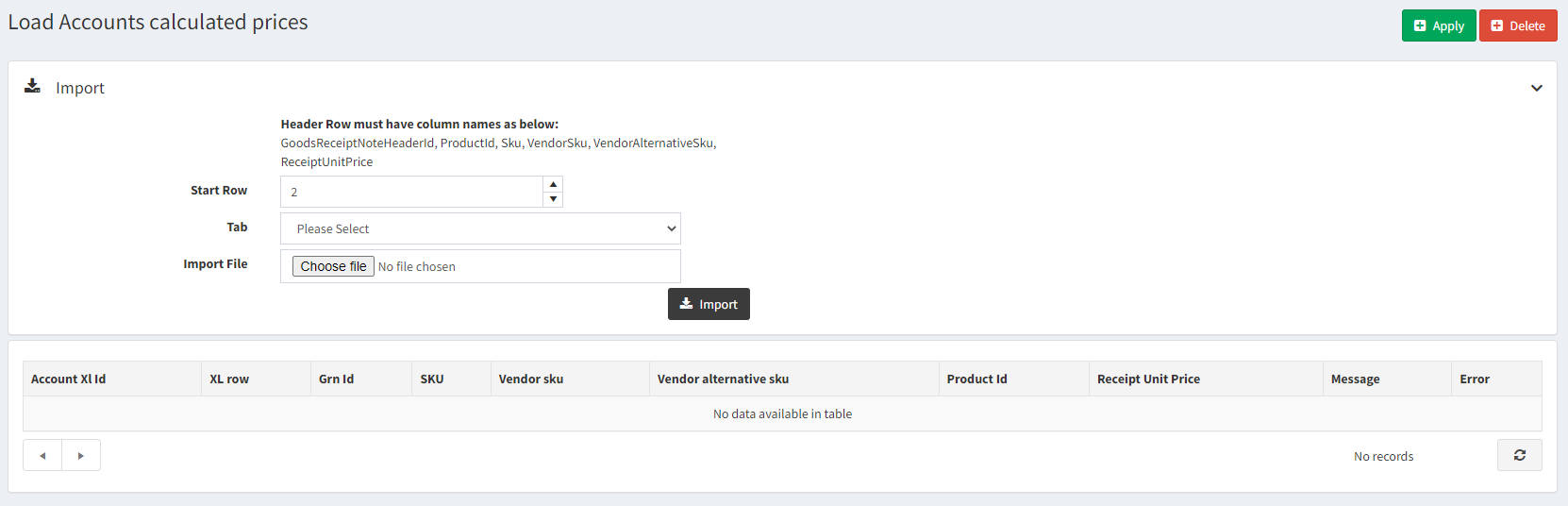
This will display the Load Accounts screen…
a) Importing XLS
- Press “Choose File”
- Select the XLS from you directory
- Press “Import”
Once imported, the grid below will populate with the records from the XLS.
The next stage is to then validate the records – Check errors in the error column. If there are errors, press the “Delete” button in the top-right, amend the issues in the XLS and then reimport the file.
When there are no errors and you are happy with the data then press “Apply”.

b) Finishing the GRN
Navigate to BoB2 → Purchasing→ Goods Receipt
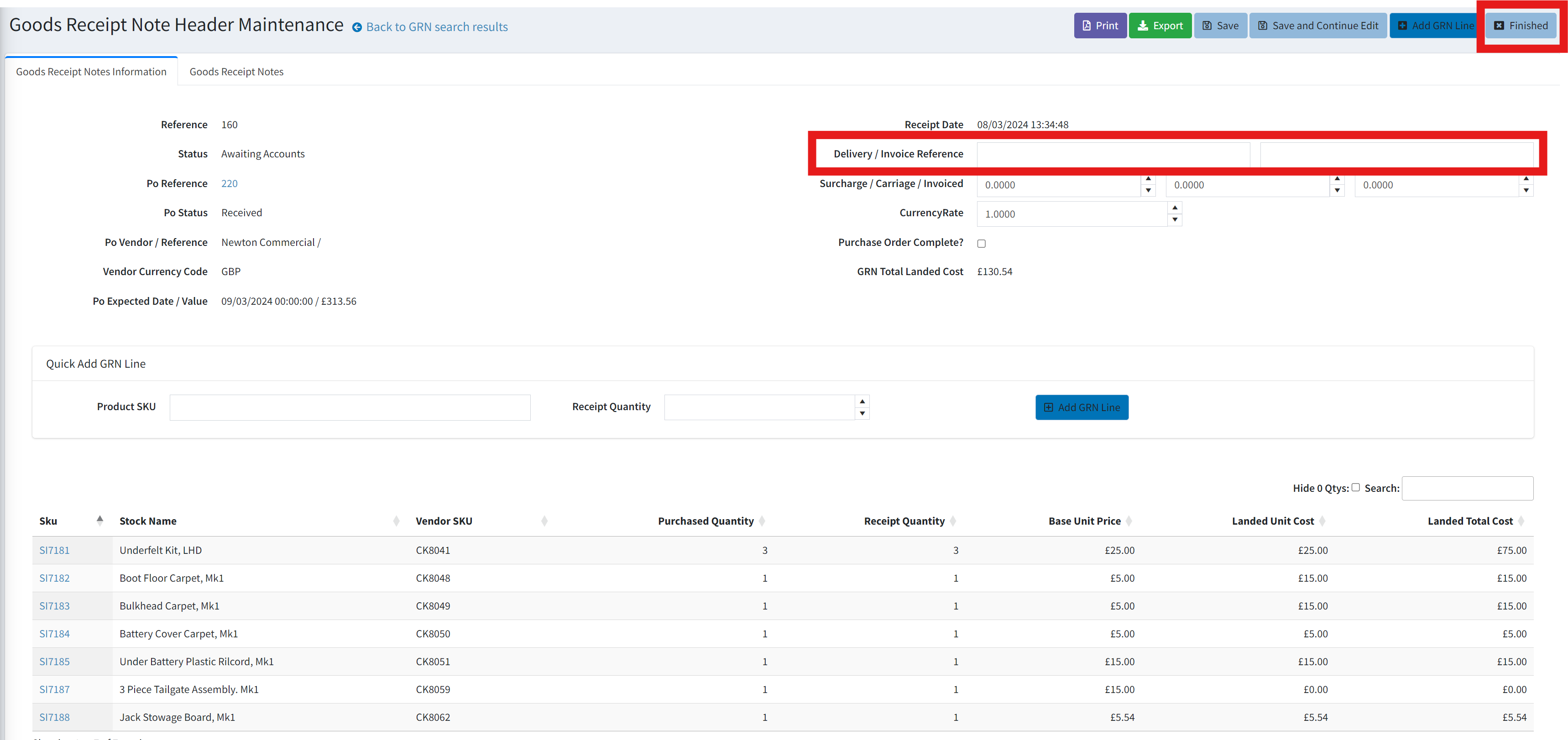
Find the GRN. (After importing the accounts via XLS the GRN status will be in the status of “Awaiting Accounts”)
Before pressing “Finished”, ensure Delivery Reference and Invoice Reference fields are populated. Once “Finish” has been pressed this will close the Purchase Order and will mark the GRN as accounts received.
2) Load Accounts via Manual Load Accounts
Navigate to BoB2 → Purchasing→ Goods Receipt
Find the GRN you are looking to load the accounts for. (NOTE: In order to manually load the accounts of a GRN, the status of the GRN must be “Goods Booked In”)
a) Manually Entering Load Account Data
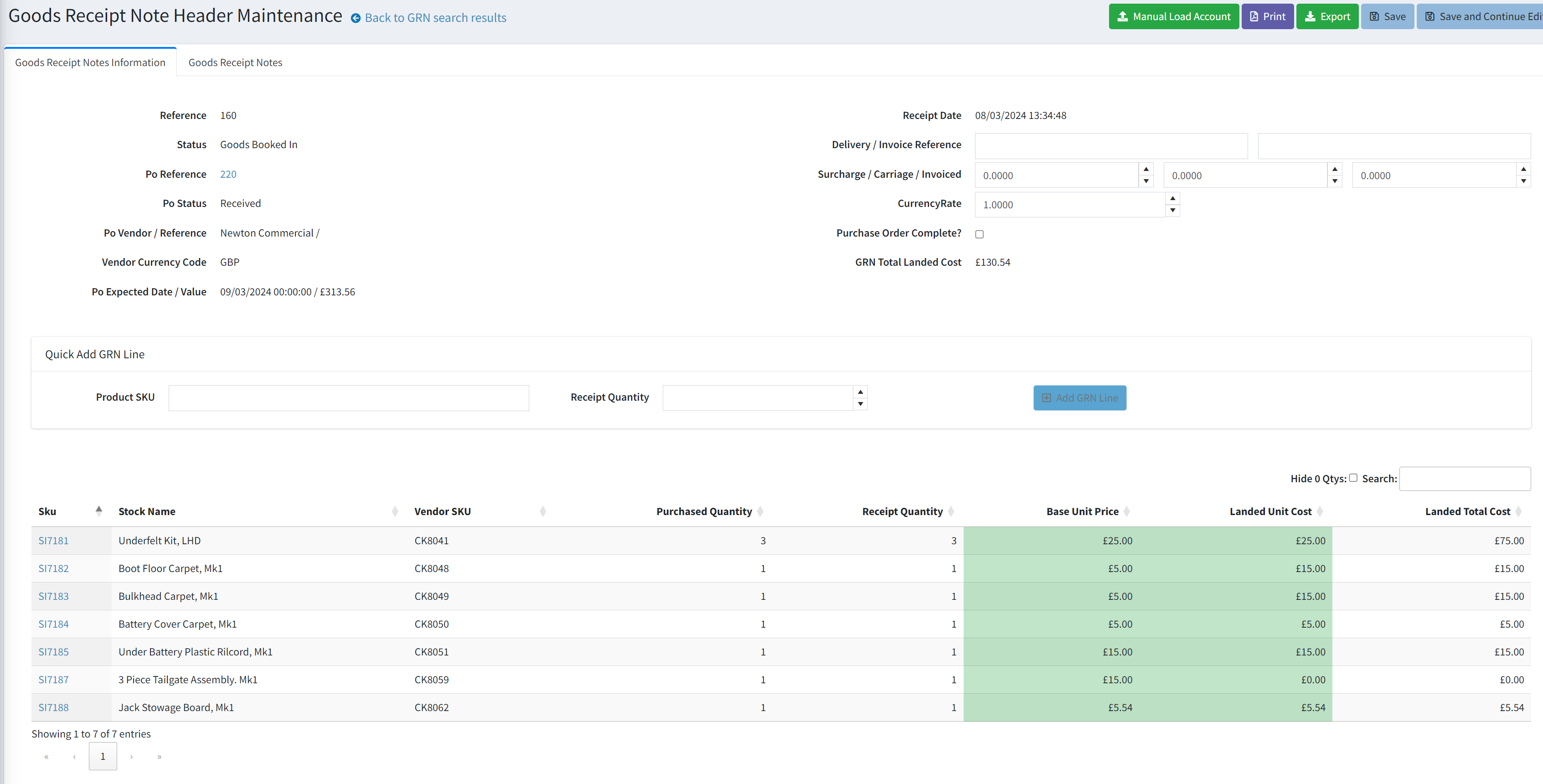
You will notice on the GRN that the columns “Base Unit Price” and “Landed Unit Cost” are highlighted in green, meaning you are able to edit those fields.
You can click into them to then go and change the value individually and then press TAB to cycle through the records. Once you have entered the values you can press the “Manual Load Account” button at the top of the screen.
b) Finishing the GRN
After pressing “Manual Load Account”, you will notice the columns have changed to white so they cannot be amended now and a “Finished” button has appeared at the top.
Before pressing “Finished”, ensure Delivery Reference and Invoice Reference fields are populated.
Once “Finished” has been pressed this will close the Purchase Order and will mark the GRN as accounts received.