
Navigate to BoB2→ Promotions→ Plugins → Smart Product Collections → Custom Product Collections
From here you will be displayed with all of the Custom Product collections…

The options on this screen include…
- “Add New” – Will allow you to create a new Product Collection
- “Edit” – Will allow you to amend a current Product Collection
- “Delete” – Will delete the Product Collection
Product Collection Edit Screen
After pressing “Add New” or “Edit” it will display the Collection Edit screen.
On this screen you will notice some settings at the top…
- Published – Set it to be active on the website
- Title – Name
- Widget Zone – the location on the webpage. (On SIL this will be “home_page_bottom”)
- Store – Determine the store you want the collection on
- Number of Products per tab – WIC set there’s to 12
- Display Order – the order number you want to display the collection in
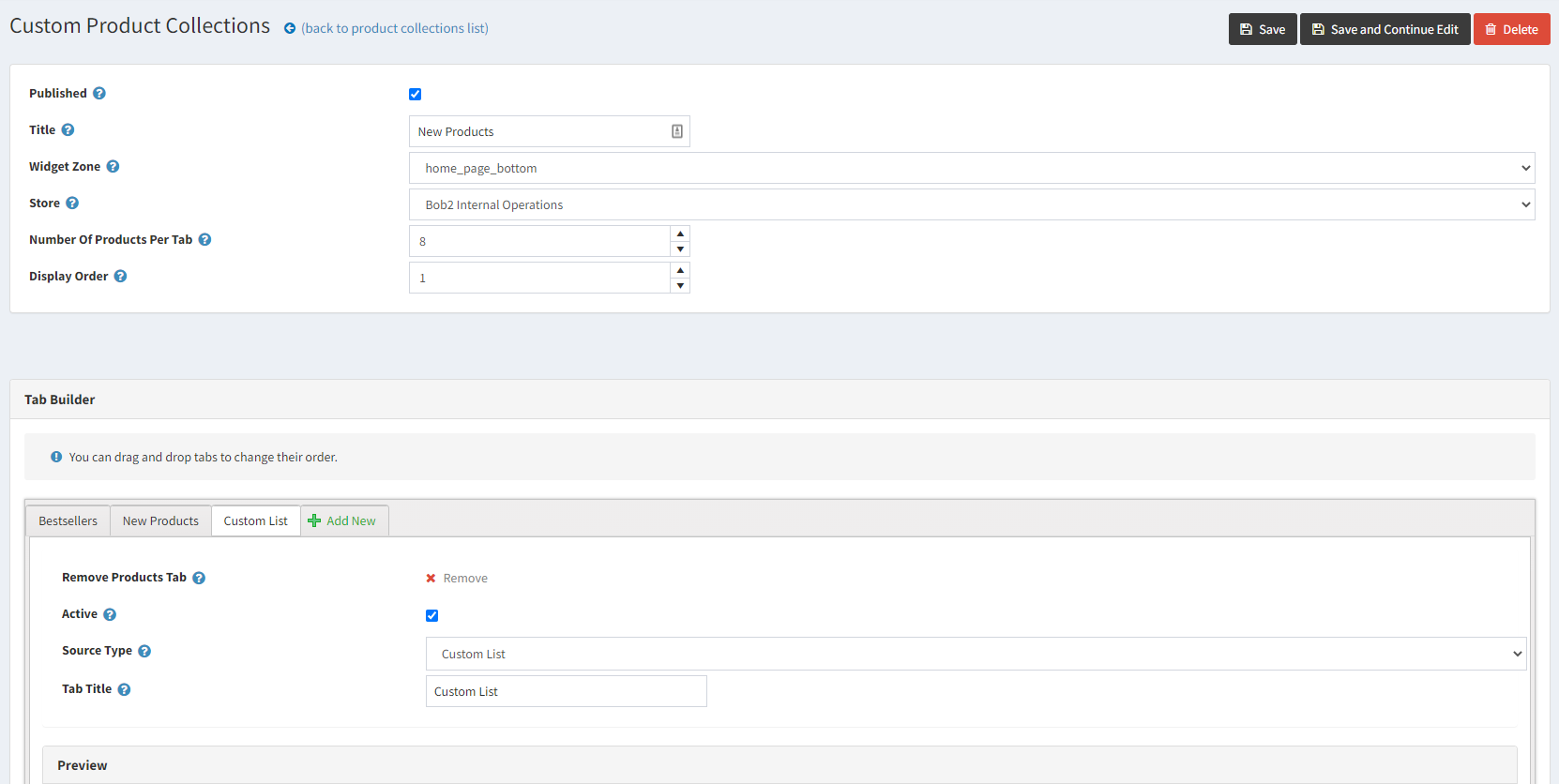
Tab Builder
If you scroll down past the initial setting to the “Tab Builder” you will see where the tab categories are created and populated
- To add a new tab, click ‘Add New’ at the end of the tab list
- To edit an existing tab, click on the tab in the horizontal tab list
Tab Types
When within a tab there are several different Tab types we can create. This can be defined using the “Source Type” dropdown menu. The different types will be detailed below…
- Custom List – Allows you to add whatever Product you wish
- New – Mark as New Date
- Bestsellers – Sold Qty
- Category – Sub Category
- Featured Products – Show on home page
Custom List Tab
Select ‘Custom List’ as the source type and then manually choose the products for your tabs by scrolling down and searching for them.
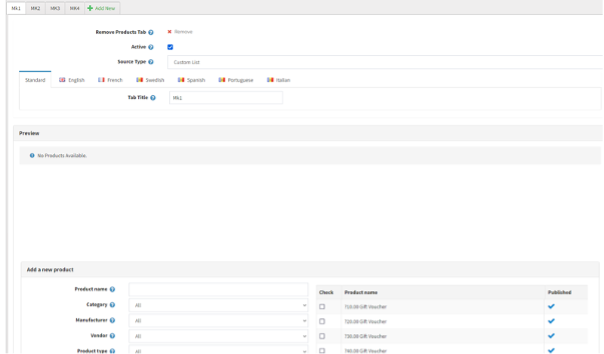
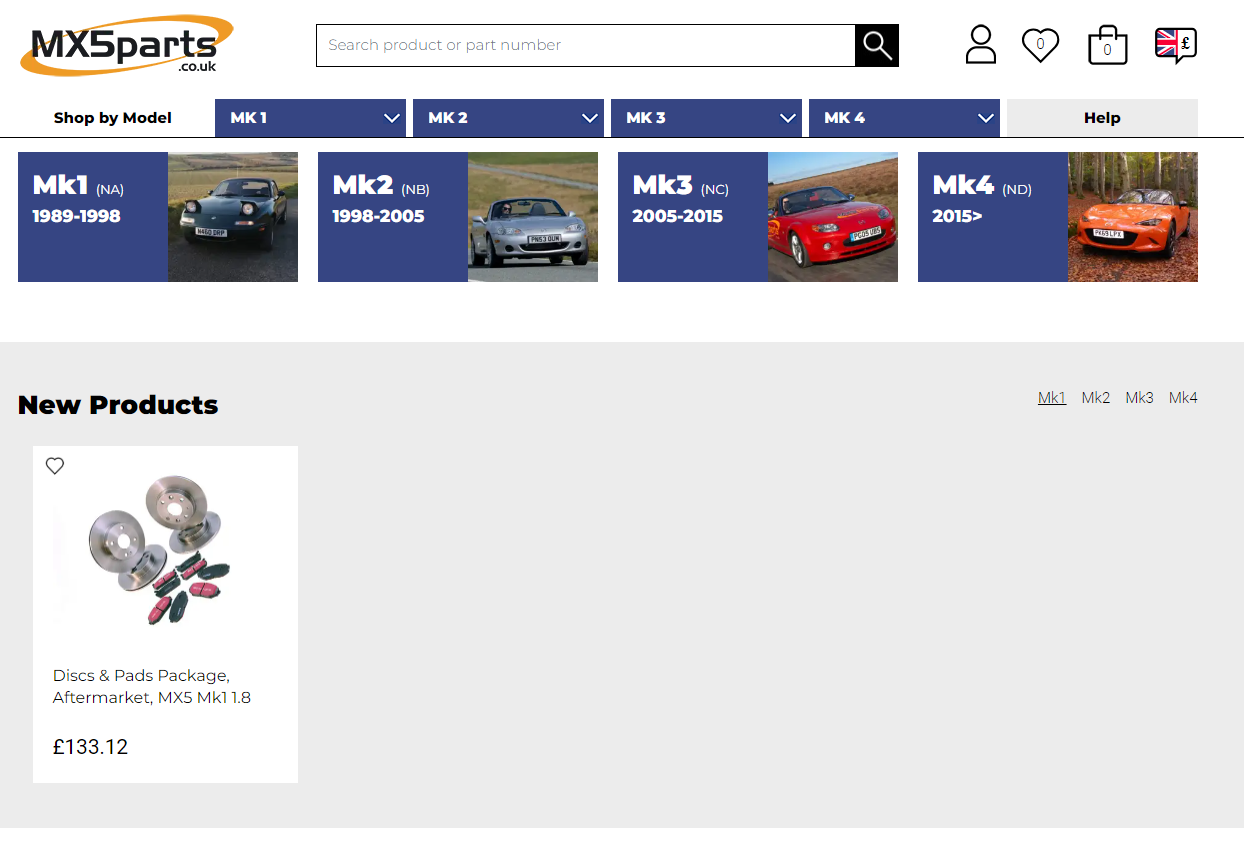
Once you’re happy with how you’ve configure your tabs, click Save in the top-right corner of the screen. You can then view the list on the Front End…
Special Offers / Discounted Products
If you are wanting to use this tab as a Special Offers tab that includes items that are on Sale. You must first create a Discount assigned to Products on the Guide below and then for those Products add them to the tab as shown above…