
You can navigate to the Picking screen by going to BoB2 → Dispatch → Picking where you will be directed to the “Orders Awaiting Picking” screen below…
Orders Awaiting Picking
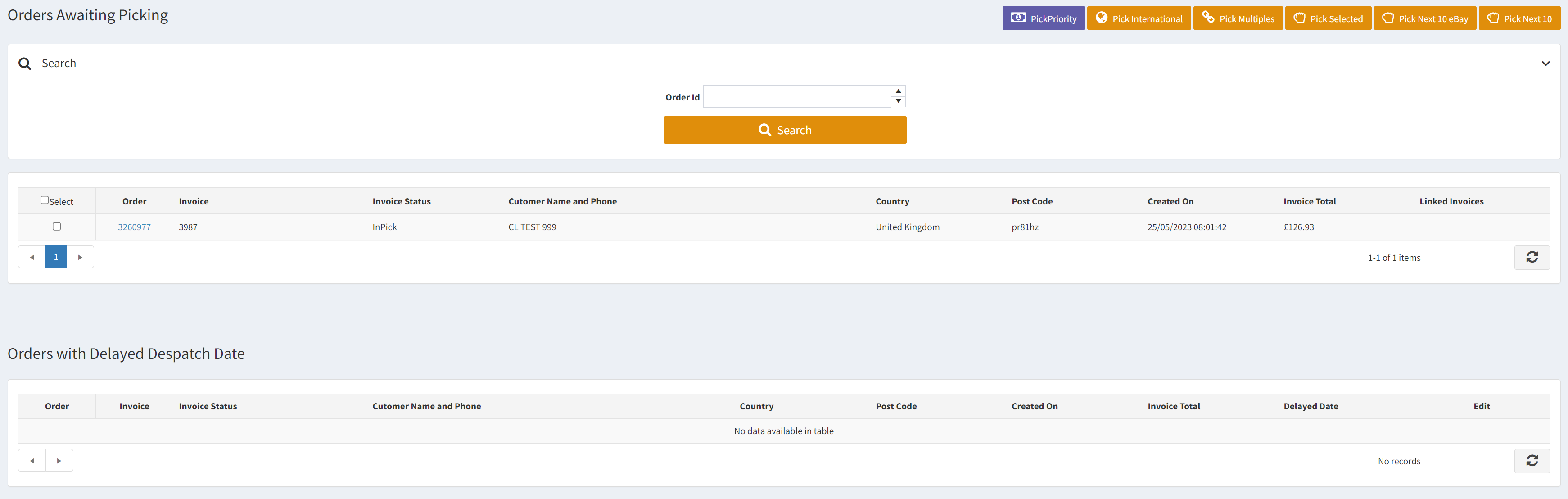
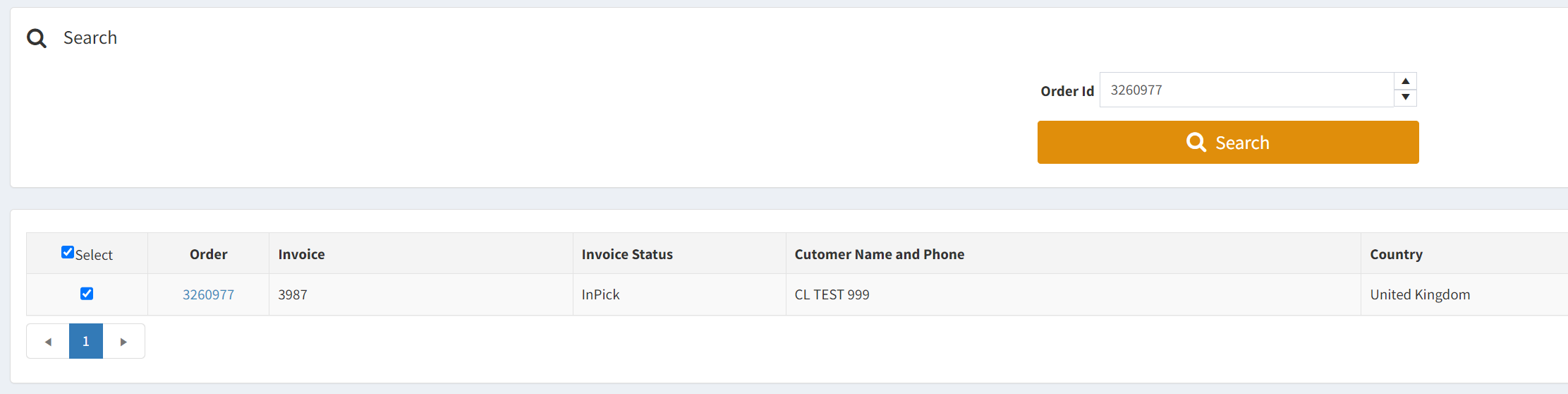
- Pick Selected – You are able to pick up 20 Invoices at one time, and can do so quickly by clicking the “Select” checkbox in the top-left of the grid or you can search for a specific Order via the Order Search facility at the top of the screen or you can scroll through the grid in order to find a specific Order to be picked. Once you have an Invoice selected via their checkbox, then you press “Pick Selected” in the top-right corner.
-
Pick Priority – Will pick all of the Invoice Lines that have a Priority flag marked against them. (E.g. Paid delivery)
-
Pick International – Will pick all of the Invoice Lines that are part of an International Order.
-
Pick Multiples – Will pick Invoice Line items where there are multiple Guest Orders with the same Billing Email Address (WARNING: Ensure pick tickets for the same customer are collated and are packed by the same user to avoid overlap)
-
Pick Next 10 – Will pick the next 10 Invoice Lines from the list.
- Pick Next 10 eBay – Will pick the next 10 eBay Order Invoice Lines from the list.
Please Note: Ensure a Picking Printer is set against the Customer account you are logged in as. Otherwise it will
Orders with Delayed Despatch

- Edit – Allows you to amend the Despatch Date. If you set it to todays date then it will move the record into the grid above so you can pick it.